How to Design the Perfect Engraving File: Vector vs. Raster Made Easy
Hey Snazzy Crafters! Tracy and Tammy here, ready to tackle a topic that might sound a little techy but is actually super simple once you know the basics: File Types!
Whether you’re ordering a custom logo etched onto a stainless steel tumbler or a detailed design burned into a wooden cutting board, the type of art file you send us makes all the difference. Get it right, and the laser delivers a perfect, crisp line every time. Get it wrong, and the laser might struggle, resulting in fuzzy edges or low resolution.
Since we want your custom creation to be absolutely perfect, here is our simple guide to Vector vs. Raster and why we always prefer one over the other for engraving!
The Fundamental Rule: The Laser Just Follows Instructions
Think of the laser as a very precise pen. It needs crystal clear instructions on exactly where to move.
1. Vector Files (The Blueprint: BEST for Engraving)
Vector files are like mathematical blueprints. Instead of relying on colored pixels, they use points, lines, and curves to define a shape.
- How They Work: A Vector file tells the laser: “Draw a circle starting here, moving this distance, and ending back here.”
- Best File Types: .SVG, .AI (Adobe Illustrator), .EPS, and .PDF (saved as a vector).
- The Snazzy Advantage: You can resize a vector file from the size of a keychain to the size of a wall mural, and the lines will remain perfectly smooth, crisp, and clean—no blurry edges ever!
- Best Used For: Text, logos, geometric patterns, monograms, and line art. If your design needs a sharp edge or is a company logo, VECTORS ARE KING.
2. Raster Files (The Photo: Use with Caution)
Raster files are like colored mosaics. They are made up of a fixed grid of tiny squares (pixels), each one assigned a specific color.
- How They Work: A Raster file tells the laser: “Burn this pixel dark, leave the next pixel light, burn the next pixel medium.”
- Best File Types: .JPEG, .PNG, .GIF, and .TIFF.
- The Snazzy Problem: If you try to enlarge a raster image too much, the squares become visible, making the edges look “pixellated” or fuzzy. The laser will try to engrave these square edges, which results in a poor-quality final etch.
- Best Used For: Photographs, complex shading, or gradients (though even photos usually need to be converted to high-contrast black and white for successful engraving).
The Snazzy Moon Quick-Check Table
Use this table to quickly check if your file is ready for our laser engraver!
| File Type Question | Answer for Vector (.SVG, .AI, .EPS) | Answer for Raster (.JPEG, .PNG) |
| Can I scale it up or down without getting blurry edges? | YES! (Ideal for us!) | NO! (Edges get fuzzy if enlarged) |
| Is it the best choice for text and logos? | YES! (Perfectly sharp lines) | NO! (Lines can look blocky) |
| Does it create a clean, single-depth burn? | YES! | USUALLY NOT! (Can create dots/shading) |
| Does it usually require an extra fee for file cleanup? |
That is an excellent choice. This “how-to” post is the most crucial piece of educational content you can create, as file submission quality directly dictates the quality of the final engraving and saves Tracy and Tammy valuable production time!
Here is a lengthy, friendly, and informative post for Snazzy Moon titled How to Design the Perfect Engraving File: Vector vs. Raster Made Easy:
🎨 How to Design the Perfect Engraving File: Vector vs. Raster Made Easy
Hey Snazzy Crafters! Tracy and Tammy here, ready to tackle a topic that might sound a little techy but is actually super simple once you know the basics: File Types!
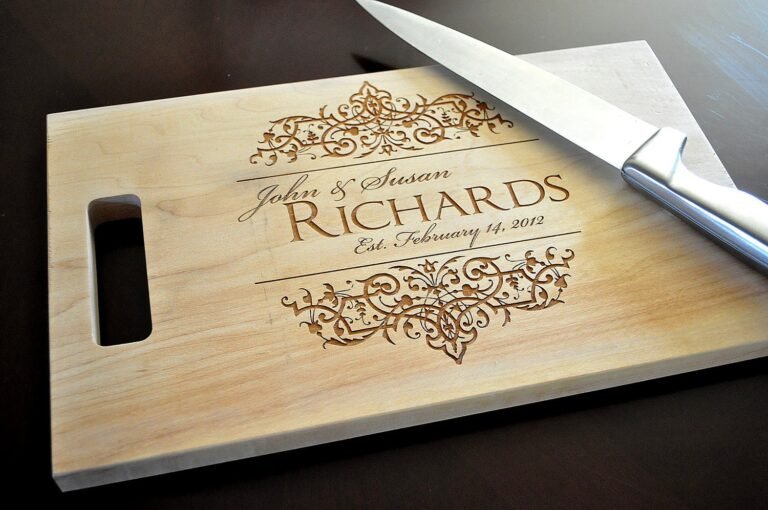
Whether you’re ordering a custom logo etched onto a stainless steel tumbler or a detailed design burned into a wooden cutting board, the type of art file you send us makes all the difference. Get it right, and the laser delivers a perfect, crisp line every time. Get it wrong, and the laser might struggle, resulting in fuzzy edges or low resolution.
Since we want your custom creation to be absolutely perfect, here is our simple guide to Vector vs. Raster and why we always prefer one over the other for engraving!
The Fundamental Rule: The Laser Just Follows Instructions
Think of the laser as a very precise pen. It needs crystal clear instructions on exactly where to move.
1. Vector Files (The Blueprint: BEST for Engraving)
Vector files are like mathematical blueprints. Instead of relying on colored pixels, they use points, lines, and curves to define a shape.
- How They Work: A Vector file tells the laser: “Draw a circle starting here, moving this distance, and ending back here.”
- Best File Types: .SVG, .AI (Adobe Illustrator), .EPS, and .PDF (saved as a vector).
- The Snazzy Advantage: You can resize a vector file from the size of a keychain to the size of a wall mural, and the lines will remain perfectly smooth, crisp, and clean—no blurry edges ever!
- Best Used For: Text, logos, geometric patterns, monograms, and line art. If your design needs a sharp edge or is a company logo, VECTORS ARE KING.
2. Raster Files (The Photo: Use with Caution)
Raster files are like colored mosaics. They are made up of a fixed grid of tiny squares (pixels), each one assigned a specific color.
- How They Work: A Raster file tells the laser: “Burn this pixel dark, leave the next pixel light, burn the next pixel medium.”
- Best File Types: .JPEG, .PNG, .GIF, and .TIFF.
- The Snazzy Problem: If you try to enlarge a raster image too much, the squares become visible, making the edges look “pixellated” or fuzzy. The laser will try to engrave these square edges, which results in a poor-quality final etch.
- Best Used For: Photographs, complex shading, or gradients (though even photos usually need to be converted to high-contrast black and white for successful engraving).
The Snazzy Moon Quick-Check Table
Use this table to quickly check if your file is ready for our laser engraver!
| File Type Question | Answer for Vector (.SVG, .AI, .EPS) | Answer for Raster (.JPEG, .PNG) |
| Can I scale it up or down without getting blurry edges? | YES! (Ideal for us!) | NO! (Edges get fuzzy if enlarged) |
| Is it the best choice for text and logos? | YES! (Perfectly sharp lines) | NO! (Lines can look blocky) |
| Does it create a clean, single-depth burn? | YES! | USUALLY NOT! (Can create dots/shading) |
| Does it usually require an extra fee for file cleanup? | RARELY! | OFTEN! (If it’s low resolution) |
Bonus Tip: Converting Your Photo for Engraving
What if you want to engrave a photograph (like on wood or slate)? You still need a high-quality file, but the process is different:
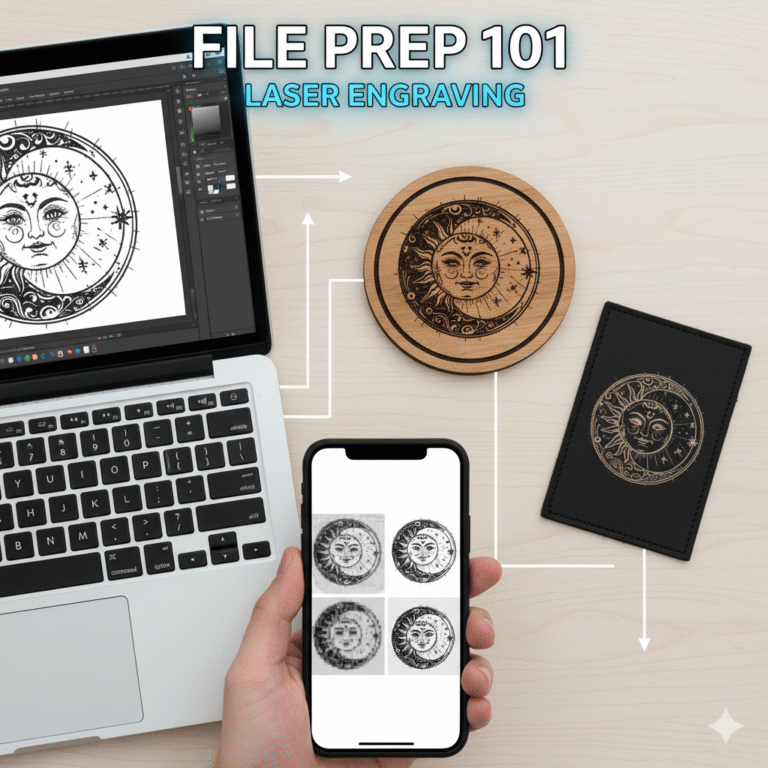
- High Contrast is Key: The best results come from photos that are converted to high-contrast black and white before sending them to us.
- No Gradients: The laser can’t do smooth gray shading very well. It uses a technique called dithering (creating patterns of tiny dots) to simulate shades of gray. The cleaner the black-and-white conversion, the better the final engraved photo will look!
Ready to submit that perfectly sharp logo or clean monogram? By using a vector file, you not only ensure the highest quality for your engraved product but also help Tracy and Tammy get your order started faster!
If you have a logo file and aren’t sure if it’s a vector, just contact us! We are always happy to take a look and advise you on the best path forward.
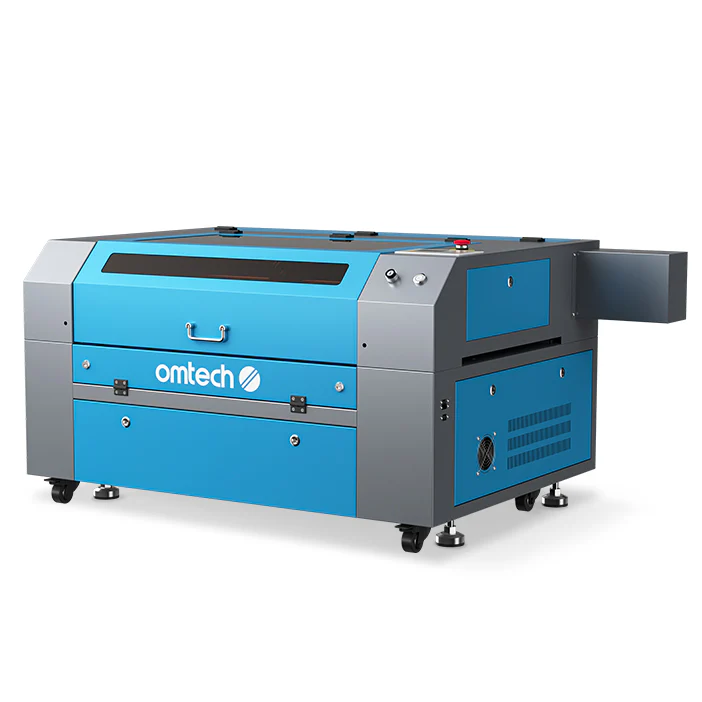
OMTech Maker 90W
- OMTech Maker MF2028-80 90W CO2 Laser Cutter and Engraver with 20″ x 28″ Working Area
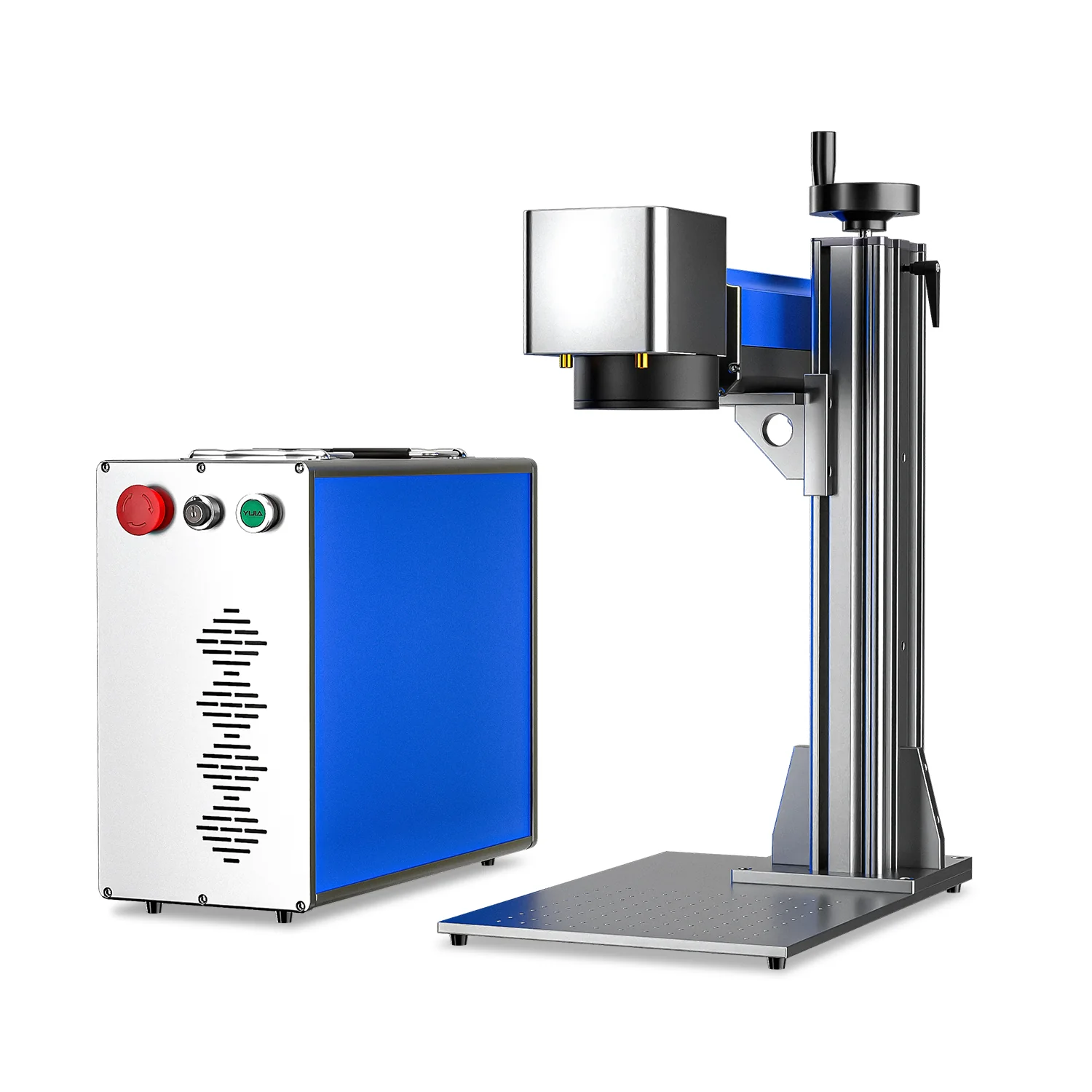
OMTech Fiber Laser
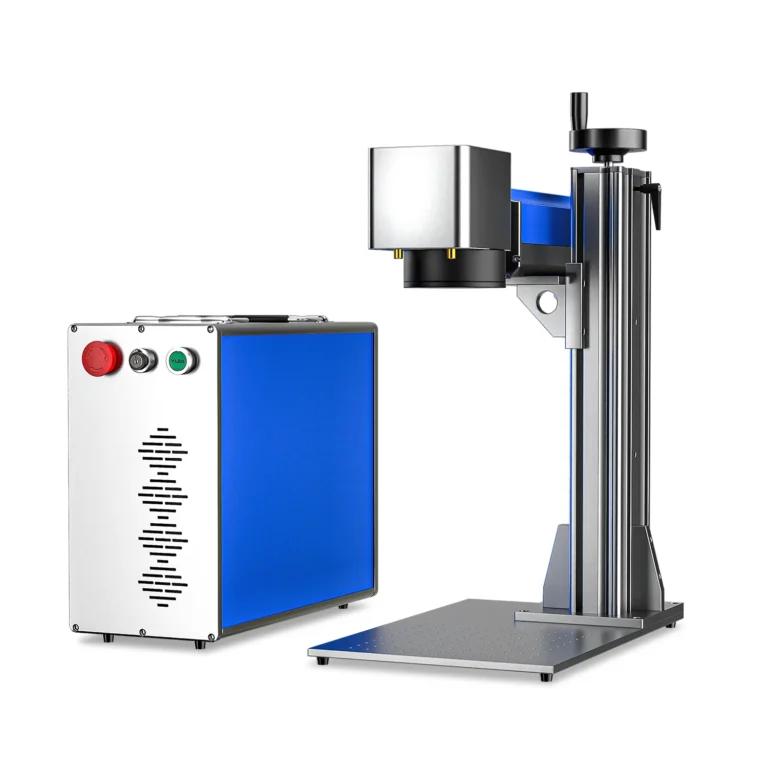
- OMTech Galvo 50W Split Fiber Laser Engraver for Metal with 7.9″ x 7.9″ Working Area
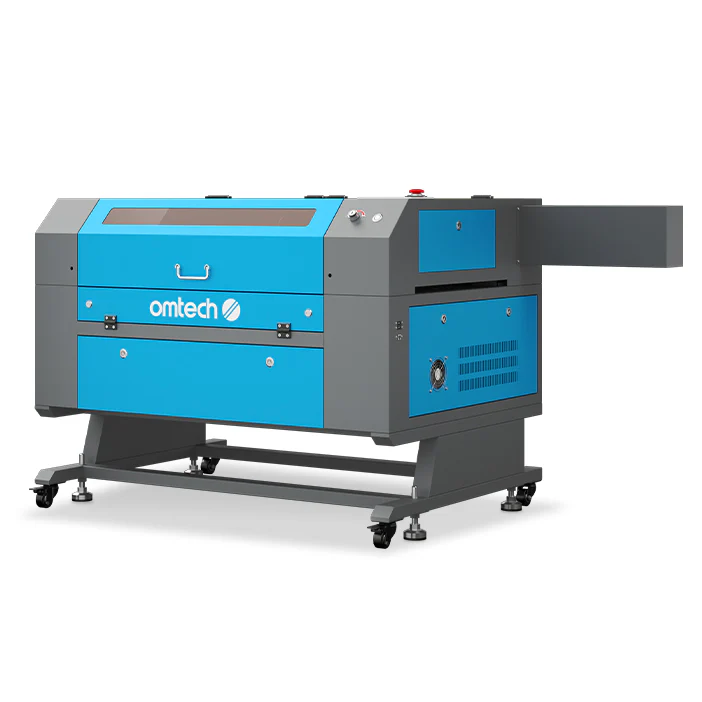
OMTech Maker 100W
- OMTech Maker MF2028-100 100W CO2 Laser Cutter and Engraver with 20″ x 28″ Working Area
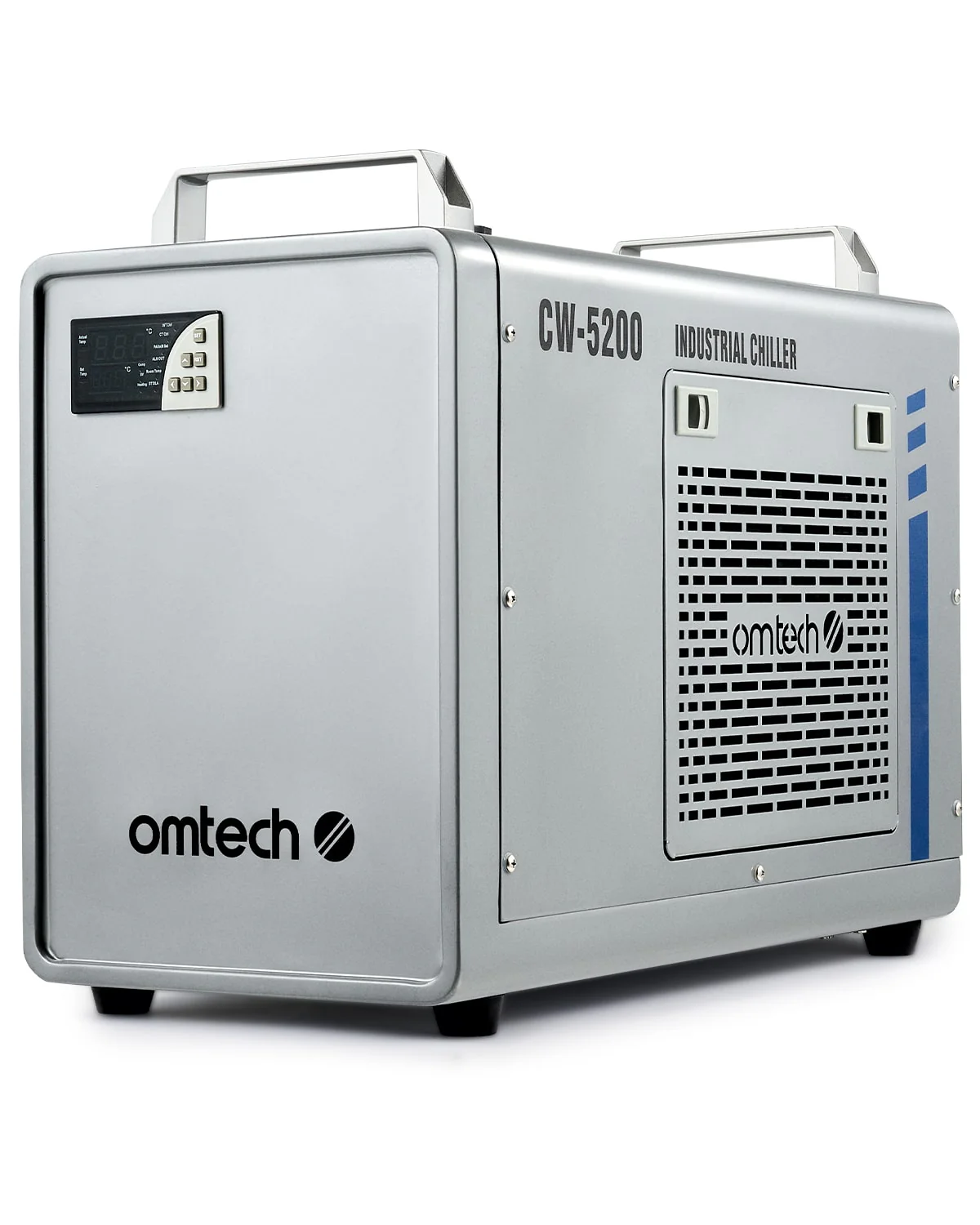
Water Chiller
- 6L Industrial Single Water Chiller for 60W-150W CO2 Laser Engraver Machines